
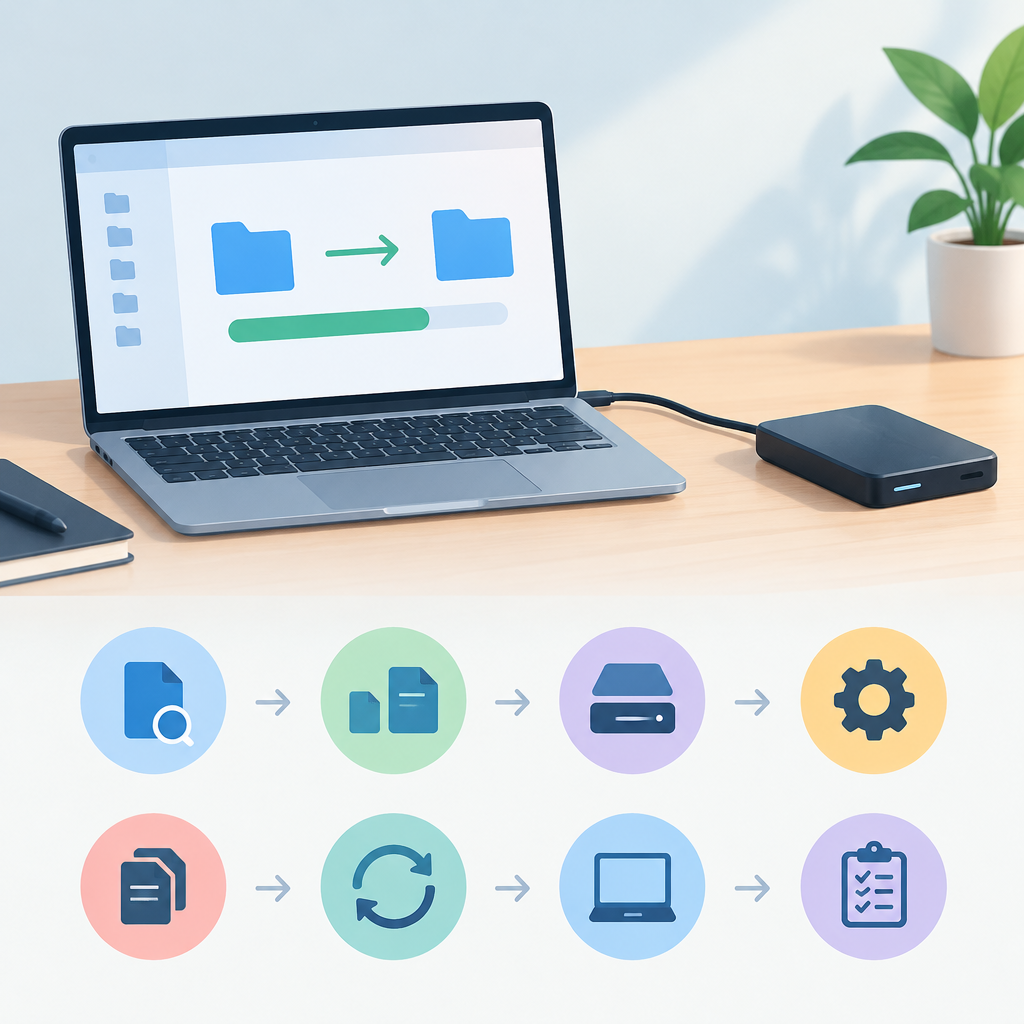
1. Define the transfer you are actually testing
A slow file transfer is easier to diagnose when you narrow the question before you start changing settings. First identify the source and destination path, the file size, the file type, and whether the copy is occurring on the same machine, across a local network, or through a synced folder that may also involve cloud services. A transfer that looks local can still be affected by a background sync client, antivirus scan, disk encryption, file indexing, or a mounted remote share. Write down the exact operation you are trying to measure, such as copying one large archive, many small documents, or a mixed folder tree. Then define a baseline condition: same cable, same Wi-Fi state, same storage device, same time window, and no unrelated installs or updates. If the issue appears only in one application, note whether that application is using its own copy engine, preview service, or background worker. The goal is not to guess the cause yet, but to make the transfer reproducible enough that each test answers one question at a time.
2. Establish a simple baseline with an owned test file
Before examining advanced causes, measure the transfer in the simplest safe way possible. Use a small test file and then a medium file to see whether the problem is constant or size-dependent. If the transfer is between two local folders on the same system, compare it with a transfer to a different internal disk or external drive. If the file lives in a network share or cloud-synced folder, create a controlled copy in a non-production location that you own or are authorized to use. Record start time, finish time, file size, and the observed result. If your operating system exposes transfer progress or throughput, note it, but do not rely on one reading alone because short bursts can be misleading. The point of the baseline is to create a known-good reference that you can compare against later after each reversible change. A good test plan uses the same file, the same path, and the same method every time unless the step itself is what you are testing. If the baseline is already slow in a clean setup, do not assume the network is responsible; local storage, file system overhead, or security software may be involved.
3. Check the storage path from source to destination
Once you have a baseline, inspect the route the data takes. A transfer that stays on one computer may still cross different storage layers: a fast solid-state drive on one side, a slower external device on the other, or a nearly full volume with limited write headroom. Look for signs that the destination is busy with other activity, such as backups, sync jobs, media indexing, or virtual machine storage. If the file is small but many items are involved, file system metadata updates may be the bottleneck rather than raw bandwidth. Also consider file system features such as deduplication, compression, snapshots, or encryption at rest, any of which can add overhead depending on the workload. On networked local systems, verify whether the path goes through Ethernet, Wi-Fi, a dock, a USB adapter, or a bridge device that adds latency or packet loss. Consult vendor documentation for the general health indicators available on your platform, because settings and labels vary. The key question is whether the path itself is the constraint, not just the endpoint devices.
4. Look for software that quietly shares the workload
Many slow local transfers are caused by software that is trying to help. Endpoint protection may scan every file as it is read and written. Backup tools, cloud sync clients, search indexing, file preview panes, and content classification software can all inspect the same data and create extra disk activity. On managed systems, defensive cybersecurity tools may be necessary and should not be disabled casually; instead, identify whether they are consuming the transfer window and whether a temporary, approved test exclusion is possible for a non-sensitive sample file. Also check whether the source or destination folder is inside a synced workspace, because the copy may trigger uploads, downloads, or conflict checks beyond the local machine. If the transfer becomes slow only when the screen is active or when a specific application window is open, a preview or thumbnail generator may be involved. The practical approach is to isolate one service at a time in a reversible manner. Change only what you can restore immediately, keep notes, and stop if the transfer involves regulated, business-critical, or unfamiliar data types.
5. Test whether the issue is file-specific or workload-specific
Not all file transfers behave alike. A single very large file often stresses sequential read and write throughput, while thousands of smaller files emphasize directory lookups, metadata updates, and application overhead. Compressed archives, encrypted containers, and sparse files can also behave differently from plain documents. A simple test plan should compare at least two patterns: one large file and one folder containing many small files of similar total size. If one pattern is slow and the other is not, that points toward a workload characteristic instead of a general system fault. Also check whether the file extension or application format matters. A database export, a virtual disk image, and a photo folder may all move through the same interface but trigger different handling by software filters. If the destination is on a cloud-synced or deduplicated volume, the number of unique blocks may matter more than file count. Keep each test small enough to repeat safely. The goal is to learn which trait changes the result, not to maximize stress or force a failure.
6. Measure the environment with reversible checks
After you know which workload is slow, perform reversible checks that can reveal the bottleneck without changing the system permanently. Rebooting can clear transient pressure from memory, caches, or stuck background jobs, but only do it when it will not disrupt other authorized users or services. Repeating the transfer after a clean start helps separate a temporary condition from a persistent one. You can also test during a quieter period to see whether the slowdown depends on shared resource contention. If the machine is portable, compare battery and plugged-in states, because some systems reduce performance when conserving power. On the network side, even a local transfer may use a switch, router, docking station, or wireless link that is sensitive to cabling or interference. Verify link status using the general status tools your platform provides, and consult vendor guidance instead of relying on assumptions. A useful test plan changes one variable, records the result, and then restores the original state. If a change cannot be undone quickly, it does not belong in the early stages of diagnosis.
7. Hypothetical example: isolating a slow copy on an authorized laptop
Hypothetical example for practice.
Hypothetical example: An employee on an authorized laptop needs to copy a project folder from an internal SSD to an external drive for a lab handoff. The first copy of a 20 GB archive finishes normally, but a folder containing 8,000 small files is much slower than expected. The test plan begins by verifying that both transfers use the same destination drive and that no cloud sync client is running on the target folder. Next, the user repeats the copy after pausing nonessential background tasks that are allowed by policy, while leaving endpoint security active. The large archive remains fast, but the small-file folder is still slow. That points away from raw bandwidth and toward metadata overhead, file system behavior, or the destination drive’s handling of many writes. The user then tries a second authorized external drive and sees a better result, suggesting that the first drive or its bridge enclosure may be the limiting factor. Because each step was reversible, the original data and the security posture stayed intact. The conclusion is not that one device is broken, but that the transfer pattern and storage path need separate attention.
8. Decide when to stop and what to document
A simple test plan needs clear stop conditions. Stop when you have identified the most likely bottleneck, confirmed it with a repeatable test, and found a safe path to improvement or escalation. You do not need to prove every possible cause; you need enough evidence to choose the next action. If the issue remains after baseline checks, workload comparisons, and reversible isolation steps, document the source and destination, file type, size, time of day, observed speed, background services, storage state, and any changes you made and then restored. This record helps a storage admin, desktop support team, or vendor help desk continue without retesting from scratch. If the transfer involves sensitive data, cloud-synced folders, or managed security controls, hand off the findings rather than disabling protections. Common mistakes include testing with different files each time, changing multiple variables at once, ignoring destination health, and assuming all local transfers use the same path. The best outcome is not only a faster copy, but a repeatable method for proving where the slowdown lives.
Post a Comment