
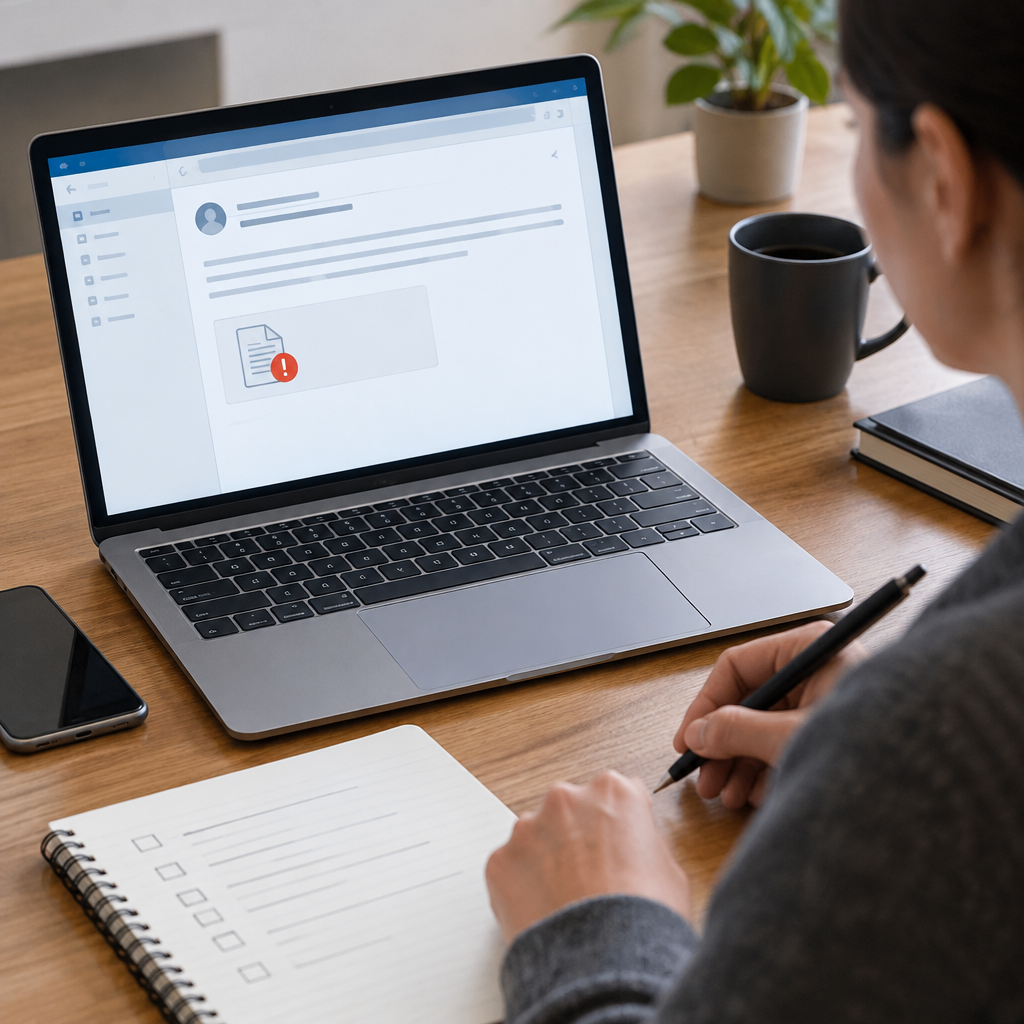
1. Start With the Email, Not the File
A suspicious attachment should be judged in context before anyone touches the file itself. Begin by checking who sent the message, whether the sender address matches the display name, and whether the request fits the normal relationship between the sender and the recipient. Look for urgency, secrecy, payment pressure, password reset prompts, or claims that a document must be opened immediately. Those are common social engineering patterns, but the real test is whether the message matches known business behavior. If your organization uses cloud email, review the message headers or message details through your mail provider’s documented tools so you can confirm the path the email took, whether authentication checks passed, and whether the message was altered in transit. Also inspect whether the attachment is actually needed at all; many malicious campaigns rely on curiosity rather than necessity. The safest first move is to pause, compare the message to prior correspondence, and verify the request through an independent channel such as a known phone number or internal chat system.
2. Build a Pre-Open Checklist
Before opening anything, use a repeatable checklist so the decision does not depend on memory. Confirm the sender through a separate channel, verify the business need for the attachment, and check whether the file extension and icon make sense together. A document named like an invoice but ending in an unexpected script or archive type deserves extra scrutiny. Review whether the message uses generic language, odd grammar, mismatched branding, or an unusual reply-to address. If your organization has a secure mail gateway or cloud quarantine, check whether the message was flagged there before it reached the inbox. Record the file name, sender, time received, and any suspicious wording in case you need to report it. This documentation helps both troubleshooting and incident response because it creates a simple timeline. Make the checklist reversible: if later evidence shows the file was safe, you have still preserved your decision trail. If evidence points the other way, you already have the basic facts needed for a security team or administrator to act quickly.
3. Inspect File Type and Packaging Risks
The file extension alone is not enough to prove safety, but it still matters. Many dangerous attachments hide behind double extensions, misleading names, or archive containers that conceal the real payload. A .zip, .iso, .img, or similar package may be used to evade mail filtering or to bundle several files together. Office documents can also carry macros, embedded objects, or external links, so the file’s label does not guarantee that it is harmless. If you are working on an owned or authorized system, check whether the file has the expected size and type for the business context. A one-page invoice that is unusually large, or a spreadsheet that arrives as a compressed archive, is worth questioning. Do not rename the file to “see what happens,” because that can destroy useful evidence and confuse later analysis. Instead, keep the original intact and, if needed, copy it to a controlled location for review. The key idea is to understand how the file is packaged before any content is executed or rendered by the application that opens it.
4. Use Safe Handling on an Isolated System
If the attachment still needs examination, use an isolated, authorized environment rather than a primary workstation. That may be a dedicated test VM, a sandbox provided by your security team, or a non-production machine with no access to sensitive systems. Disconnect unnecessary network paths, disable automatic syncing, and avoid signing in with your everyday accounts. The goal is not to defeat every possible threat, but to reduce blast radius while you verify the file’s behavior. Open the file only if your policy permits it, and prefer viewers or preview tools that do not execute active content by default. Snapshotting a virtual machine before inspection can be useful because it gives you a reversible rollback point if the file behaves unexpectedly. Still, a snapshot is not a guarantee of safety, so treat it as a recovery aid, not a shield. If you see a process spawn unexpectedly, a login prompt appear out of nowhere, or outbound network activity that does not match the document’s purpose, stop immediately and preserve the system state for analysis.
5. Check the Attachment Against Application Controls
Modern defenses are strongest when mail, endpoint, and application controls work together. In email systems, attachments may be scanned, stripped, quarantined, or converted to safer formats depending on policy. In office applications, macro settings, protected view, and external content blocking can prevent automatic execution of risky code. File-sharing and cloud storage services may also add quarantine, link-expiration, or access-control layers that reduce exposure if an attachment is uploaded instead of opened locally. The important practical step is to know which controls are enabled in your environment and how to verify that they are active. Consult vendor documentation for the general process because the exact menu names and paths vary by product and deployment. If a control is disabled for a valid reason, document that exception and restore it afterward. A common mistake is assuming that the presence of security software means no further checks are needed. Another mistake is permanently lowering protection to get through one file. Temporary changes should be narrow, approved when required, and reversed as soon as the test or review is complete.
6. Look for Hidden Behaviors and Embedded Content
Suspicious attachments are often dangerous not because of the visible content, but because of what is hidden inside. Documents may contain macros, scripts, embedded links, forms, or objects that reach outside the file when opened. Archives may unpack additional layers, and some file types can launch companion files or reference content stored elsewhere. When reviewing an authorized sample, use the least active view available and inspect metadata, file properties, and document structure before executing anything. If your tools can show whether macros are present, whether the document references external resources, or whether the file tries to contact a network host, that information is more useful than a quick visual glance. Be careful not to rely on file names that include words like “final” or “approved,” because attackers often use normal business language to build trust. If you cannot determine what the file will do when opened, that uncertainty is itself a reason to stop. The safe stopping point is not failure; it is the correct outcome when the risk remains unclear and the business need is weak or unverified.
7. Hypothetical Example: A Finance Invoice on an Owned Test Machine
Hypothetical example for practice, not a real case.
Suppose a finance team member on an owned test system receives an email that appears to be from a regular supplier, but the sender domain differs by one character and the attachment is a compressed archive labeled invoice. The checklist says to verify the request through a known contact route, and the separate call reveals that no invoice was sent. At that point, the message is treated as suspicious without opening the archive. The archive is then moved to a controlled analysis machine, where the file type is checked, the contents are listed without extraction, and the security team reviews the headers and delivery path. The system is kept isolated, and the original message is preserved for reporting. No one tries to “just see what it does” on a live workstation. This example shows why the checklist is practical: it combines business verification, file inspection, and reversible containment. It also demonstrates a clear stop condition. Once the sender cannot be validated and the package does not match the expected invoice pattern, the correct action is not more curiosity but escalation through the organization’s normal security reporting channel.
8. Close the Loop: Report, Restore, and Improve the Checklist
A good checklist ends with cleanup and feedback. If the attachment was blocked, quarantined, or deemed unsafe, report the event using your organization’s security process so patterns can be tracked across inboxes, cloud services, and endpoints. If you made temporary changes for analysis, restore them and confirm that the system returns to its normal state: re-enable protections, reconnect only approved services, and remove any sample files from the test environment according to policy. Then review the case for lessons learned. Did the sender verification step take too long? Did the email gateway miss an obvious clue? Did the file type create confusion because the extension was hidden? Update the checklist so the next person can move faster and with less guesswork. Keep the checklist simple enough to use under pressure, and specific enough to prevent shortcuts. The best measure of success is not that every suspicious attachment gets opened safely; it is that genuinely risky files are identified early, handled in an isolated and reversible way, and escalated before they can affect production systems or user accounts.
Post a Comment