
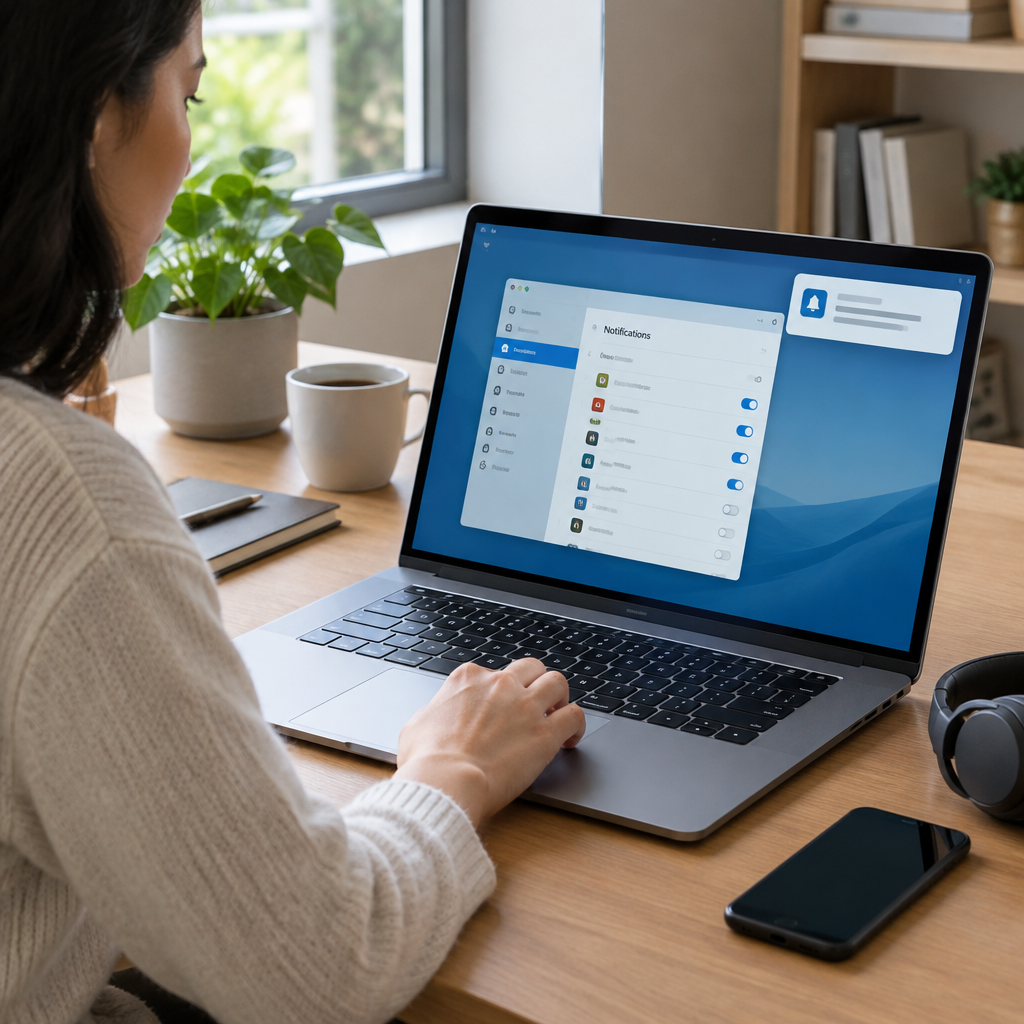
Start by Defining the Symptom Before Changing Anything
Desktop notification problems are easiest to solve when you separate the symptom from the cause. First decide whether the issue is that notifications never appear, appear too late, appear without sound, or appear only in some applications. That distinction matters because each failure points to a different layer: the application itself, the operating system, account policy, network delivery, or cloud sync. Before changing settings, confirm the device is on, signed in, and able to receive other normal updates such as mail or chat messages. If the problem is limited to one app, test a second app with known notification behavior on the same device. If all apps fail, the issue is more likely system-wide. Record the current state so you can reverse changes later. Note the device type, user account, network connection, and whether the problem started after a software change, profile change, or VPN connection. Stop after each test and verify the result instead of changing several settings at once. That one-at-a-time approach makes the fix traceable and reduces the chance of creating a new problem while solving the old one.
Check the Application’s Own Notification Permission First
Many desktop notification failures begin inside the application rather than the operating system. Start with the app’s own notification controls and confirm that notifications are enabled for the account you are actually using. Some apps let you silence one workspace, one channel, one mailbox, or one project while leaving others active. Others distinguish between banner alerts, tray alerts, sounds, and badge counts. If the app offers a test notification, use it before changing anything else. If it does not, trigger a known event such as sending yourself a message or creating a calendar reminder on an owned or authorized system. Also verify that the app is signed in and fully synchronized, because a disconnected session may still open normally while missing real-time alerts. If the app stores settings in the cloud, those preferences may follow you to another device, so a local reset may not help unless you change the profile itself. Make one adjustment, then wait long enough to observe at least one expected notification. If the app still misbehaves, restore the setting and move to the operating system layer rather than guessing at hidden options.
Verify Operating System Notification Settings and Do Not Skip Profiles
If the app looks correct, move to the operating system notification controls. Desktop platforms usually provide global notification permissions and per-application permissions, and either one can block alerts. Confirm that notifications are allowed for the app, that banners or toasts are enabled, and that audio is not disabled if sound is part of your alert flow. Many systems also let each user profile keep separate preferences, so test the exact account that experiences the issue. On shared systems, a standard user may see different behavior from an administrator account because policies or defaults differ between profiles. Be careful not to confuse notification permission with startup permission or background activity permission; an app may be allowed to launch but still be blocked from posting alerts. If the system has a preview mode for notifications, use it to verify display behavior without waiting for a live message. When possible, change only one permission at a time, then test immediately. If the alert appears, keep the change and document it. If the setting has no effect, return it to the original value before continuing so you do not accumulate unrelated changes across multiple layers.
Use Focus Modes, Quiet Hours, and Do Not Disturb with Caution
Focus modes and quiet-hour features are common reasons a healthy notification pipeline appears broken. These features intentionally suppress alerts during meetings, full-screen apps, sleep periods, or scheduled work blocks. Check whether a manual or scheduled quiet mode is active, and verify whether the app in question is allowed to bypass it. Some systems also suppress sound while still allowing visible banners, which can make the problem seem partial rather than complete. If the device is managed by a business or school, quiet-mode rules may be applied by policy and not fully editable by the user. In that case, consult the vendor or administrator documentation rather than trying random settings. Test by temporarily disabling quiet mode on an owned or authorized system and then generating one expected notification. If alerts return, the issue is likely a suppression rule rather than a delivery failure. Re-enable quiet mode afterward if it is needed for normal work. A common mistake is to leave the system in an always-on exception state and forget about it, which may solve one problem while increasing distraction and reducing privacy. Keep the change temporary until you understand the real cause.
Confirm Background Activity, Power, and Network Delivery
Desktop notifications often depend on background connectivity, even when the app window is closed. If background refresh, background sync, or app suspension is restricted, the app may not learn about new events quickly enough to notify you. Check whether battery-saving or power-saving settings are reducing background activity, especially on portable devices or all-in-one systems that behave like laptops. On a stationary desktop, network power management can still matter if the adapter or sleep settings cut off traffic during idle periods. Also confirm that the device is actually connected to the expected network and not silently redirected through a guest network, captive portal, or VPN that interferes with real-time delivery. If the app uses cloud messaging, temporary DNS failure, proxy issues, or firewall filtering can delay notifications even though web browsing still works. A practical test is to compare behavior on a different known-good network while keeping all other settings unchanged. If notifications work there, the cause may be local connectivity rather than the app. Change only one variable, then reverse it when the test is done. Do not assume that a silent desktop means the app is broken; sometimes the device is simply not reachable in the way the service expects.
Review Security Software, Firewalls, and Policy Controls Carefully
Security tools can block or delay desktop notifications without causing obvious errors. Endpoint protection, firewall rules, application control, and device management policies may restrict background processes or network sockets that the notification service needs. Treat these controls carefully because the goal is to verify behavior, not weaken protection. On owned or authorized systems, use the product’s documented exclusions, event logs, or temporary test controls to confirm whether a security layer is interfering. If a change restores notifications, reverse it and look for a narrower exception instead of leaving the device broadly exposed. If the system is managed, a local user may not be able to override a policy at all, which means the correct fix is an administrative one. Be aware that some products inspect encrypted traffic, which can affect apps that depend on certificate trust or persistent connections. Also remember that a blocked notification may be a sign of legitimate defense, not failure. If a notification source is unfamiliar, unsigned, or suddenly active after an unrelated change, stop and verify that the app is trusted before allowing it through. Good troubleshooting respects both availability and security.
Understand Cloud Sync, Account State, and Cross-Device Behavior
Hypothetical example for practice, not a real case.
Many modern notification systems are cloud-backed, so the device is only one part of the chain. If the same account receives notifications on one computer but not another, the problem may live in account sync, device registration, or service-side preferences rather than in the local desktop. Check whether the account is current, whether the app is fully signed in, and whether any required device registration or push token has expired. Some services also store notification preferences in the cloud, which means a desktop setting can be overwritten the next time the profile syncs. If you use multiple devices, compare behavior after signing out of all but one known-good system, then test again. This isolates whether the account itself or the local machine is responsible. Avoid changing passwords, deleting profiles, or resetting the entire app before testing the simpler possibilities, because those actions can disrupt other services and make the problem harder to trace. If cloud delivery is involved, short delays may be normal during service instability, so verify with more than one notification event before deciding the fix failed. Reversible, single-step testing is still the safest method.
Use a Repeatable Test, Then Stop When the Evidence Is Enough
Hypothetical example for practice, not a real case.
After each change, run a repeatable test and decide whether the result is clear enough to keep or undo the setting. A good test uses the same app, the same account, and the same type of event each time so you can compare outcomes. If a notification appears, appears with sound, or stops arriving altogether, write down exactly what changed and when. That note becomes your troubleshooting log and helps you avoid rechecking the same dead end later. If the problem is fixed, stop changing settings. More tweaking may reintroduce the failure or create a new one. If the problem is not fixed after the obvious application, operating system, quiet-mode, background, security, and cloud checks, the next step is to consult the vendor documentation for that specific app or device family and confirm whether a known limitation applies. On a managed system, escalate with your notes rather than starting over. A clear stop condition is just as important as a fix: once you have confirmed that one setting explains the behavior, restore any temporary exceptions, keep the smallest necessary change, and document the final state so the problem can be revisited safely if it returns.
Post a Comment