
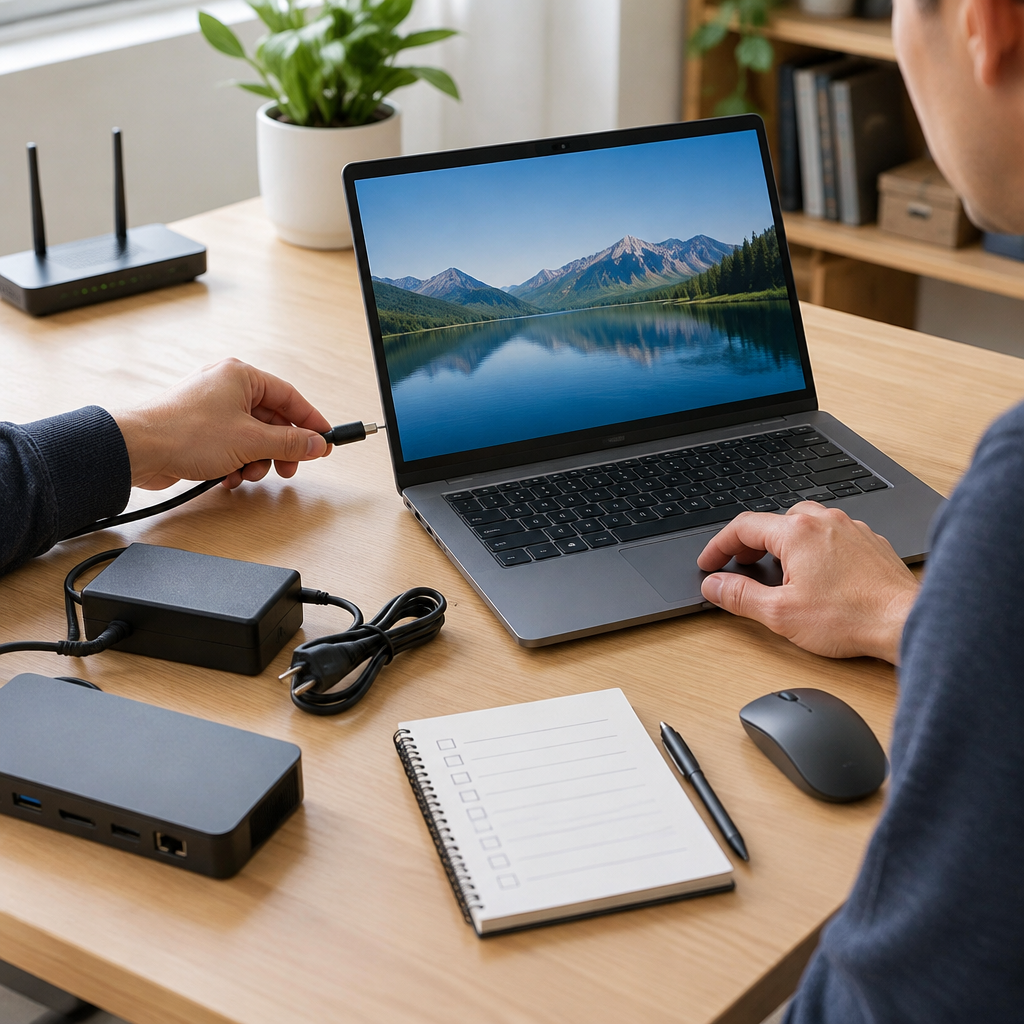
1. Begin With a Small Inventory and a Clear Stop Point
A replacement computer setup goes more smoothly when the checklist starts before the first login. Confirm the basics: the device, charger, power cable, docking hardware if used, keyboard, mouse, display adapters, and any external drives you expect to migrate. Record the serial number and label the machine so you can tell it apart from older systems. If you are replacing a broken computer, note which files, browser data, credentials, printers, and peripherals must return to the new device. Decide what must be copied and what can be rebuilt later. That decision matters because a simple checklist should reduce risk, not rush every item onto the new machine at once.
Stop when you have enough information to avoid guessing. If you do not know whether a setting was local or cloud-based, treat it as unknown until you verify it. If the old device is unavailable, use account portals, admin records, or vendor documentation to reconstruct only the settings you truly need. Avoid making irreversible changes such as wiping the old computer, disabling two-factor authentication, or deleting backups until you know the replacement is working and important data is confirmed elsewhere. A short written checklist, even on paper, is often enough to keep the process orderly.
2. Connect the Computer Safely and Confirm the Hardware First
Before touching accounts or software, make sure the replacement computer is physically stable and responsive. Connect power, then boot it and observe whether it completes startup without repeated restarts, warning lights, overheating, or unusual noises. If the machine is refurbished or newly delivered, check that storage, memory, keyboard, touchpad, screen, audio, webcam, and ports behave normally. Plug in one external device at a time so you can identify the source if something fails. If a dock is involved, verify the dock, cables, and display path separately, because many connection issues come from the bridge hardware rather than the computer itself.
Only continue once basic hardware checks pass. If the battery seems weak, keep the device on AC power during setup so a shutdown does not interrupt updates or transfers. If the screen is flickering, the keyboard layout is wrong, or an external monitor is not detected, stop and fix that before moving on. Reversible troubleshooting is best here: try a different cable, a different port, or a direct connection instead of the dock. Consult vendor documentation when the behavior depends on the model, because setup concepts are similar even when the menus differ. The goal is to verify the machine is dependable enough to support the rest of the checklist.
3. Set Up the Network and Access Path Before Syncing Anything
A new computer should join the network in a controlled way. Decide whether the device belongs on home Wi‑Fi, office Wi‑Fi, a wired connection, or a guest network during initial testing. If you are on a managed network, use the approved connection method and confirm whether VPN, device certificates, or sign-in portals are required. Verify that the computer can reach trusted services such as email, cloud storage, and your organization’s internal resources if applicable. If you are using a wireless network, confirm the correct SSID and password, then test that internet access is stable enough for downloads and synchronization.
Keep the network step separate from app setup so a connectivity issue does not look like a software problem. If DNS, captive portals, or firewall rules prevent access, record the symptom and stop to investigate instead of changing multiple settings at once. Do not save passwords in browsers or sync every account immediately if you have not confirmed that the device is secured and intended for the user. A simple checklist should include a final note about network trust: connect only to networks you own or are authorized to use, and consult the organization’s documentation if the device needs special routing, proxy settings, or endpoint controls.
4. Sign In to Core Accounts and Restore Identity Carefully
The next checklist item is usually account access, but it should be done deliberately. Start with the primary identity provider: work account, personal email, or device account, depending on the purpose of the computer. Use the official sign-in method and confirm multi-factor authentication works before approving anything sensitive. If the old machine stored passwords, tokens, or recovery codes, verify that you can still access them from a separate trusted device or recovery method. Reclaiming a replacement computer is much easier when the account picture is stable first.
Then restore the minimum set of services needed for daily work: email, calendar, contacts, cloud storage, and password manager, in that order if possible. This prevents a flood of notifications from unrelated apps and makes troubleshooting clearer. If a service insists on re-authentication, check whether the app is tied to a previous device or requires a license transfer. Stop if you encounter repeated login failures, unexpected lockouts, or unfamiliar recovery prompts. Those can indicate a typo, a policy restriction, or a security event, and each should be handled carefully. Avoid disabling security controls to make the login easier. If the account is important, a slow and verified sign-in is better than a fast but uncertain one.
5. Restore Files From Backups or Cloud Storage in a Controlled Order
Once identity is in place, restore files with the same discipline you used for accounts. Prefer the most reliable backup source available, whether that is cloud synchronization, a network backup, or an external drive you control. Check which folders are supposed to return automatically and which must be copied by hand. Start with documents, project files, and settings that are essential for work. Leave large media libraries, archives, and optional downloads for later unless they are business-critical. This staged approach reduces the chance that a broken archive or corrupt file takes time away from the important material.
Verify the restored data before you depend on it. Open several representative files, compare recent dates, and confirm the folder structure matches what you expect. If you use cloud storage, make sure files are fully synced rather than only visible in placeholders. If the old computer still exists, keep it unchanged until you are satisfied that the replacement contains everything needed. That old device is often the best fallback while you confirm the transfer. Stop if you notice missing folders, duplicate account profiles, or a backup that appears incomplete. In that case, use a clean copy from another backup point instead of forcing the bad one to overwrite the good one.
6. Reinstall Applications by Priority, Not by Habit
Applications are easiest to manage when you rank them by need. Install the tools required for sign-in, communication, security, and work output first. That usually includes a browser, office suite, PDF reader, messaging tools, VPN client if needed, and security software approved for the device. Then add specialty programs one at a time, checking whether each one requires a separate license, plug-in, or account connection. A checklist works best when every install has a reason and a verification step. If an application is cloud-based, you may only need to sign in and confirm synchronization rather than install anything large.
Use caution with old installers copied from the previous computer. Prefer the vendor’s current download page or your organization’s software catalog, because outdated installers can cause compatibility or security issues. If a program depends on data from a previous version, first confirm that the old data can be imported or opened safely. Avoid installing everything you have ever used on day one, because unnecessary software increases clutter and can hide problems. Stop if an installer asks for administrative rights and you do not know why, or if a program requests browser extensions, auto-start changes, or system-level permissions that are not clearly needed. On a replacement computer, minimal first and optional later is the safer rule.
7. Hypothetical Example: A Home User Migrates a Work-from-Home Laptop
Hypothetical example for practice, not a real case.
Example on an owned device: a home user receives a replacement laptop after the old one fails to boot. The checklist begins with power, Wi‑Fi, and a test login to the user’s main email account. After that, the user restores cloud documents, confirms the password manager syncs, and checks that a printer and headset still work. The user then installs a video meeting app and opens a recent file to verify that local edits and cloud versions match. Because the machine is personal, there is no corporate management portal to contact, but the user still keeps the old laptop untouched until the new one is confirmed usable.
This example shows why simple checklists should distinguish between necessary and optional tasks. The user does not copy every old photo immediately, does not change router settings, and does not install unfamiliar software just because it was present before. When a file fails to open, the user stops and checks whether the issue is a damaged file, a missing app, or a sync delay. That pause prevents panic-driven changes. On authorized systems, this kind of measured migration is usually faster than trying to restore everything at once, and it leaves a clear record of what has already been verified.
8. Finish With Security Checks, Testing, and a Reversible Closeout
A replacement computer is not finished until it passes a final verification round. Review the basic security settings: automatic updates enabled, screen lock active, device encryption or equivalent protection turned on where supported, antivirus or endpoint protection present if required, and recovery options recorded safely. Confirm the browser is signed into the correct profile, that password autofill is not exposing the wrong identities, and that important cloud services sync without repeated errors. Test the things you will actually use: email send and receive, file creation, printing if needed, video or audio for meetings, and access to any internal service you depend on. Keep each test simple and record the result.
Closeout should remain reversible. Do not erase the old computer, discard backup media, or repurpose it until the replacement has been used successfully for at least one normal work cycle and all essential data is confirmed. If a problem appears later, you want a fallback. Common mistakes include skipping updates, assuming synchronization means verification, and mixing personal and work accounts without checking what each one contains. If something still looks uncertain, stop and return to the checklist rather than improvising. A simple checklist is most valuable when it tells you what is done, what remains, and what should not be changed yet.
Post a Comment