
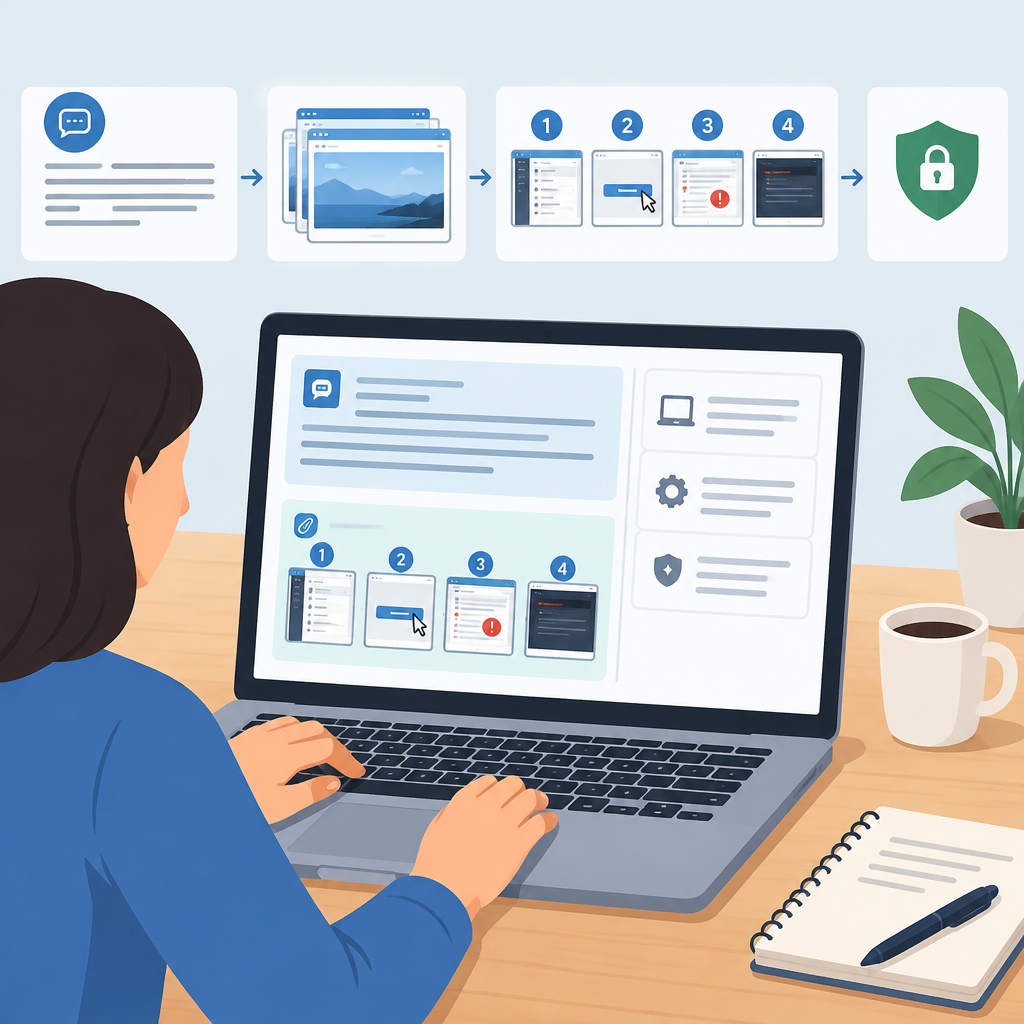
Start With the Problem, Not the Pictures
A useful support request begins with a short, clear problem statement before any screenshots appear. Describe what you were trying to do, what happened instead, and what should have happened. This gives the reader a frame of reference, which is especially important when the issue spans cloud apps, browsers, VPNs, or internal tools. A screenshot without context can mislead a support engineer because the visible page may be a symptom rather than the root cause. Before you attach anything, identify the device type, app or service name, network location if relevant, and whether the problem is reproducible or intermittent. If you can reproduce it on an owned or authorized system, note the exact steps in order. Keep the language plain and factual. Avoid blaming language, guesses about causes, or long backstories that bury the key details. The best stop condition is simple: once the person reading the request can understand the issue, the environment, and the impact without asking follow-up questions, you have enough context to start adding screenshots.
Capture Only the Evidence That Matters
Take screenshots to prove a specific point, not to document an entire session. In troubleshooting, every extra image adds noise, increases the chance of leaking sensitive data, and makes it harder to see what changed from one step to the next. Focus on the moment the problem appears, the setting that controls it, the error message, or the comparison between expected and actual behavior. If the issue involves networking, include the relevant status screen, connection indicator, or message that shows whether the client is on wired, wireless, VPN, or cloud access. If it involves an application workflow, capture only the screens needed to show the failure path. Crop out unrelated desktop clutter when possible, but do not crop away the part of the screen that proves the issue. On owned systems, it is reasonable to open a separate window for the task so the screenshot is cleaner. Do not edit evidence in a way that changes meaning. If a screenshot becomes unreadable after cropping or compression, recapture it instead. The verification rule is simple: each image should answer one question and no more.
Order Screenshots as a Reproducible Sequence
Support staff work faster when screenshots follow the same order as the actions you took. Think of the set as a short story: setup, action, result, and any error detail. Number the files or place them in a text document in the exact sequence, especially when the problem only happens after a chain of steps. A timeline matters because many issues are caused by state changes, cached data, permissions, or stale sessions. If you opened several tabs, switched accounts, or moved through a wizard, show the transitions that lead to the failure. For cloud services and web applications, the sequence may need a login screen, the target page, the action button, and the resulting alert. For network issues, it may need the connection state before and after a VPN or DNS change. Avoid mixing screenshots from different attempts unless you label them clearly. A common mistake is attaching only the final error screen, which forces support to guess what happened earlier. Stop when the sequence is complete enough that another authorized user could retrace your steps without improvising.
Annotate Carefully Without Hiding the Evidence
Annotations can make screenshots easier to understand, but they should guide the reader rather than obscure the original evidence. Use simple labels, arrows, circles, and short callouts to point at the relevant field, message, or control. Keep the annotation style consistent across the set so support can follow the thread quickly. When the issue involves multiple windows, use numbering or short notes to show which window was active first. If you need to mark confidential areas, cover them with solid blocks after confirming that the covered content is unrelated to the problem. Do not use decorative colors, large stickers, or long paragraphs inside the image. Those additions make screenshots harder to read, especially when the image is compressed or viewed on a smaller screen. If settings vary by vendor, keep the concept general: highlight the field that matters, not the exact menu path. On owned or authorized systems, a brief annotation next to a failed login prompt, a missing permission notice, or a disconnected network indicator is usually enough. If annotation changes the meaning of the image or introduces doubt, revert to the original screenshot and explain the issue in text instead.
Protect Privacy and Security Before You Share
Screenshots often contain more information than you intended, including names, email addresses, tokens, IP addresses, internal hostnames, file paths, customer data, and live session identifiers. Treat them like any other support artifact: share the minimum necessary detail and remove anything that is not needed to solve the issue. For defensive cybersecurity reasons, avoid exposing secrets, QR codes, one-time codes, recovery links, or administrative panels unless they are directly relevant and the recipient is authorized to see them. If a screenshot shows cloud consoles, access control lists, or device settings, consider whether the visible account name is required or whether a redacted version is enough. Redaction should be honest; cover data completely, and do not leave partial text that can be reconstructed. Recheck the image at full size before sending. If the screenshot includes sensitive information you cannot safely redact, stop and choose a different evidence type, such as a text description or a sanitized log excerpt. The reversible step is simple: if you are unsure whether a field matters, remove it from the image and add a note in the request explaining what was hidden and why.
Use File Names and Labels That Tell the Story
Clear file names help support teams sort screenshots quickly, especially when several people reply or multiple issues are open at once. Use names that combine the date, the sequence number, and a short clue about the content, such as login-failure-01, vpn-status-02, or upload-error-03. Consistent naming is more helpful than clever naming. If your ticketing system allows attachments to be reordered, place them in the same sequence as the steps you described. If it does not, include a short index in the message body so the reader knows what each file shows. When screenshots come from different devices or sessions, label them by source in a neutral way, such as laptop, remote-session, or mobile-browser, instead of inventing subjective descriptions. In cloud or application troubleshooting, one screenshot may show the tenant, workspace, or account context, while another shows the failure itself; label both so they do not get separated. Avoid generic filenames like image1 or screenshot-final-final. Those names lose meaning the moment the thread grows. Verify that each label matches the picture and that the label still makes sense if the image is printed or forwarded outside the original email chain.
Pair Screenshots With the Right Technical Context
Hypothetical example for practice.
A screenshot is strongest when it sits beside the technical details that help explain it. Include the relevant device model or class, operating system family if it matters, browser or app name, network path if the issue might involve DNS, proxy, VPN, or firewall policy, and whether the problem occurs on one network or all networks. For cloud systems, note the service involved, the account type, and whether the user is working in a browser, desktop client, or API-driven workflow. If the issue appears after a change, record the change window and the exact action taken, such as password reset, role update, endpoint update, or configuration rollout. Do not guess at root cause; simply describe the facts that narrow the field. This information helps support decide whether they need logs, packet captures, access checks, or application tracing. On owned or authorized systems, it is reasonable to include a comparison screenshot showing normal behavior versus broken behavior, as long as the two are clearly labeled. Stop adding context once the main variables are identified. Too much background can bury the one detail that actually matters.
Share, Review, and Keep the Request Reversible
Hypothetical example for practice.
Before sending the request, review the full set as if you were the support engineer seeing it for the first time. Check that the screenshots are readable, in order, and tied to the written steps. Confirm that no sensitive data slipped through and that the problem statement matches the images. If you used a shared drive or cloud link, verify permissions so the intended support team can open the files without exposing them broadly. When possible, send a single organized package rather than piecemeal replies that fragment the evidence. If the issue changes during troubleshooting, update the request with new screenshots instead of replacing the originals without explanation; that preserves the history. Reversible changes matter here too: if you altered a setting just to capture a screenshot, note it and restore it afterward on owned systems unless support has asked you to keep the change in place. The final stop condition is practical: the reader should be able to see the failure, understand the sequence, know the environment, and know what you already tried. When those pieces are present, screenshots stop being clutter and become a reliable troubleshooting record.
Post a Comment