
What an IP Address Conflict Actually Means
A private IP address conflict happens when two devices on the same local network try to use the same address at the same time, or when one device keeps an address that another device has already been given. Private addresses are the non-routable ranges commonly used inside homes, small offices, labs, and guest networks. They are normal and safe to use internally, but they must be unique within each broadcast domain or subnet. When uniqueness breaks, traffic may reach the wrong device, or the network may behave unpredictably as each device competes to answer the same address.
In practice, conflicts can appear as slow connections, intermittent disconnections, duplicate device names, failed remote access, or a printer that works for one user and disappears for another. The conflict may be caused by a static address that overlaps with a DHCP pool, a cloned device, a new router added behind an existing one, or a temporary network bridge that makes two segments look like one. Before changing anything, confirm that the issue is on an owned or authorized system and note the affected device, the exact error, and whether the problem is constant or intermittent. That baseline helps separate an address conflict from unrelated DNS, Wi-Fi, or application issues.
How Small Networks Commonly Create Conflicts
In a small network, conflicts usually happen because addressing was set up informally. One person may assign a printer a fixed address so it is easier to find, then later the router’s DHCP service gives that same address to a laptop or phone. Another common pattern is adding an old router or mesh unit without placing it into true access-point mode. That extra device may start handing out its own addresses, which can overlap with the main network and create collisions. A similar issue appears when a NAS, camera, or smart appliance ships with a default address that matches something already in use.
Cloud-connected applications can make this look larger than it is. A device may show as online in a vendor portal even while the local LAN is conflicted, because the outbound cloud session survives for a while. The reverse can also happen: the internet still works, but local file sharing, casting, printing, or remote desktop fails. The key defensive concept is that private IP conflicts are local identity problems, not usually internet problems. To troubleshoot safely, identify the network boundary first, then the addressing method in use, and then the devices likely to share the same subnet. Do not assume a single reboot will fix an underlying numbering mistake.
Confirming the Conflict Before Making Changes
Start with a controlled verification process. First, identify the subnet, default gateway, and whether the device uses DHCP or a manually assigned address. Most operating systems expose this information through a network status page, but the exact location varies by vendor. Then check whether the address in question is already assigned elsewhere. If the network allows it, review the DHCP lease list on the router or network controller and compare that list with the static addresses used by printers, servers, cameras, and access points. Look for duplicate MAC addresses, repeated hostnames, or a device that appears and disappears as leases refresh.
Next, isolate the symptom. If one laptop cannot reach a printer but another can, the issue may be that the printer and laptop are not actually on the same subnet, or the printer’s address is contested. If many devices fail at once, inspect whether a second DHCP server is active. A useful stop condition is this: if you cannot confidently identify the overlapping address or the server handing it out, stop expanding the change and document what you observed. That keeps the problem from turning into a network-wide outage. Verification should come before correction, because the safest fix is the smallest correct one.
Safe Ways to Resolve a Static-versus-DHCP Overlap
A common and reversible fix is to move the conflicting static address outside the DHCP scope, or to reduce the DHCP pool so it no longer covers that static range. This works best when the network already has a documented plan. If the router offers address reservation, use that instead of a hard-coded static address on the device whenever possible. Reservation ties a MAC address to a predictable lease while keeping the central server in control. That approach is easier to audit and less likely to collide with future changes.
If you must change the device itself, do it one device at a time and record the original address, subnet mask, gateway, and any DNS settings before editing. After the change, renew the lease or reconnect the device and test basic reachability to the gateway first, then local resources, then internet access. Do not change multiple devices simultaneously unless the conflict is already fully understood. If the affected device is a printer, camera, or storage appliance used by others, announce a maintenance window and keep a fallback path in case the change breaks service. Reversible changes matter: if the new addressing does not work, restore the previous settings and re-check the pool design rather than improvising a second fix.
Finding Rogue DHCP and Double-Router Problems
One of the most disruptive causes of address conflict is a rogue DHCP server. This is any device that begins leasing addresses even though it should only be a client or access point. Common examples include a spare router, an unmanaged Wi-Fi extender, a small office firewall left in the wrong mode, or a virtual machine bridging into the LAN. A rogue server can hand out a different gateway, DNS server, or overlapping address range, and devices may connect to it unpredictably. The result can look like a conflict even when the true problem is inconsistent addressing authority.
To investigate, compare the default gateway and DHCP server address shown on several affected devices. If they differ from the expected router, inspect the network path physically and logically. Verify which device is actually connected to the modem or upstream link, and whether any extra routers are providing service behind it. In a controlled environment, temporarily disconnect the suspect device or disable its DHCP service according to vendor documentation, then observe whether new leases stabilize. Stop as soon as the network returns to a single source of address assignment. If you are unsure whether a device is safe to disconnect, label it, trace its cable, and check the upstream network map before touching it. That prevents accidental downtime.
How to Check for Duplicate Addresses on Core Devices
If the conflict involves a printer, NAS, camera, or server, check whether more than one device answers for the same address. The exact tools differ by platform, but the principle is the same: compare the IP address with the physical identity of the device. On a small network, the switch’s MAC address table, the router’s lease table, and local device status pages can help you see whether the same IP is associated with different hardware identities. If a device changes from reachable to unreachable after a short time, a duplicate address is a strong possibility.
A practical method is to disconnect the suspected duplicate device from the network and test again. If the problem disappears, you have confirmed the collision without relying on guesswork. Then decide whether the device should be moved to a reserved address, given a new static address, or returned to DHCP with a reservation. Keep the fix scoped to the affected device. Avoid changing the whole subnet just because one endpoint is problematic. Also remember that some consumer devices cache network information, so after reassignment you may need to restart the endpoint or renew its lease before testing. Verification should include a real application check, such as printing a test page or opening a file share, not just a ping.
Hypothetical Example: A Home Office with a Printer and a NAS
Hypothetical example for practice, not a real case.
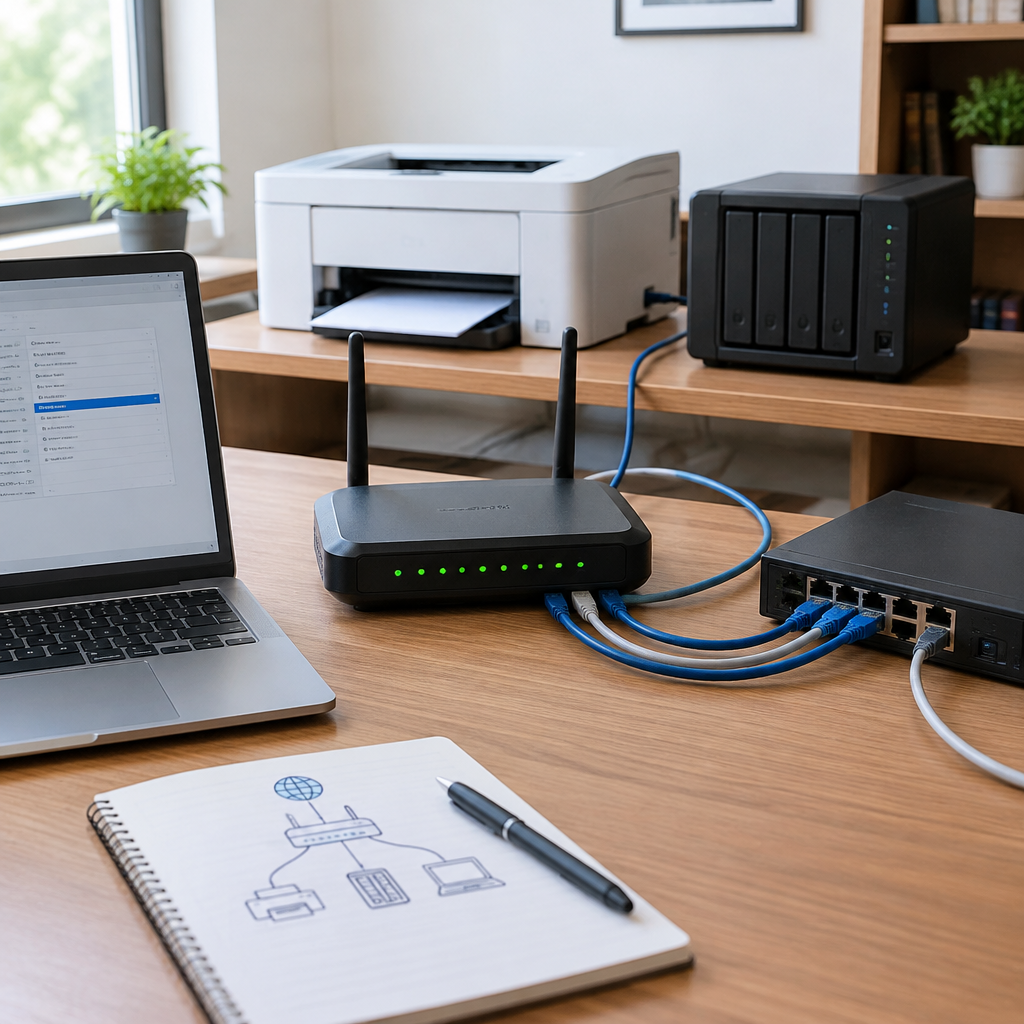
Imagine an authorized home office network using a single router with a subnet such as 192.168.1.0/24. The printer was manually set to 192.168.1.50 months ago, and the router’s DHCP pool also includes that address. After a laptop reconnects, it receives 192.168.1.50 from DHCP. Suddenly, the printer appears offline, and the laptop briefly loses access to the internet when traffic flips between the two devices. This is a classic overlap between a static address and the dynamic pool.
The safe fix is straightforward. First, record both devices’ current settings. Then change the printer to a reserved address outside the DHCP pool, or adjust the pool so that 192.168.1.50 is excluded from automatic leases. After the change, reconnect the laptop, restart or renew the printer’s network session, and test printing from one known workstation. If the printer is also used by cloud print services, verify that the local address change did not break any connected application or management page. If something fails, restore the original configuration and retry with a more conservative address plan. This example shows why even one duplicate can disrupt both local and cloud-mediated workflows, and why careful documentation makes recovery faster.
paragraphs
Prevention Through Address Planning, Monitoring, and Documentation
The best long-term defense against IP conflicts is simple planning. Keep a written address map that shows the subnet, gateway, DHCP range, reserved addresses, and any static devices. Separate infrastructure such as routers, switches, access points, printers, storage, cameras, and administrative workstations into clearly defined ranges if the environment is large enough to need structure. If the network uses VLANs or guest segmentation, document which subnet belongs to which group so devices are not accidentally placed on the wrong side of a boundary. That matters because a conflict in one segment may be invisible in another until bridging or misconfiguration exposes it.
For ongoing monitoring, review the router or controller logs for repeated lease failures, ARP anomalies, or frequent reconnects from the same hostname. Use these logs as indicators rather than proof, since different vendors surface different details. Make changes in small steps and keep a rollback plan: record the original configuration before each adjustment, test after each change, and stop when the symptom is resolved. Common mistakes include reusing a favorite address without checking the pool, adding a second router in the wrong mode, and forgetting that guest devices should not share the same trust boundary as printers or servers. If the cause remains unclear after basic checks, pause and consult vendor documentation or a qualified network administrator rather than widening the change set.
Post a Comment