
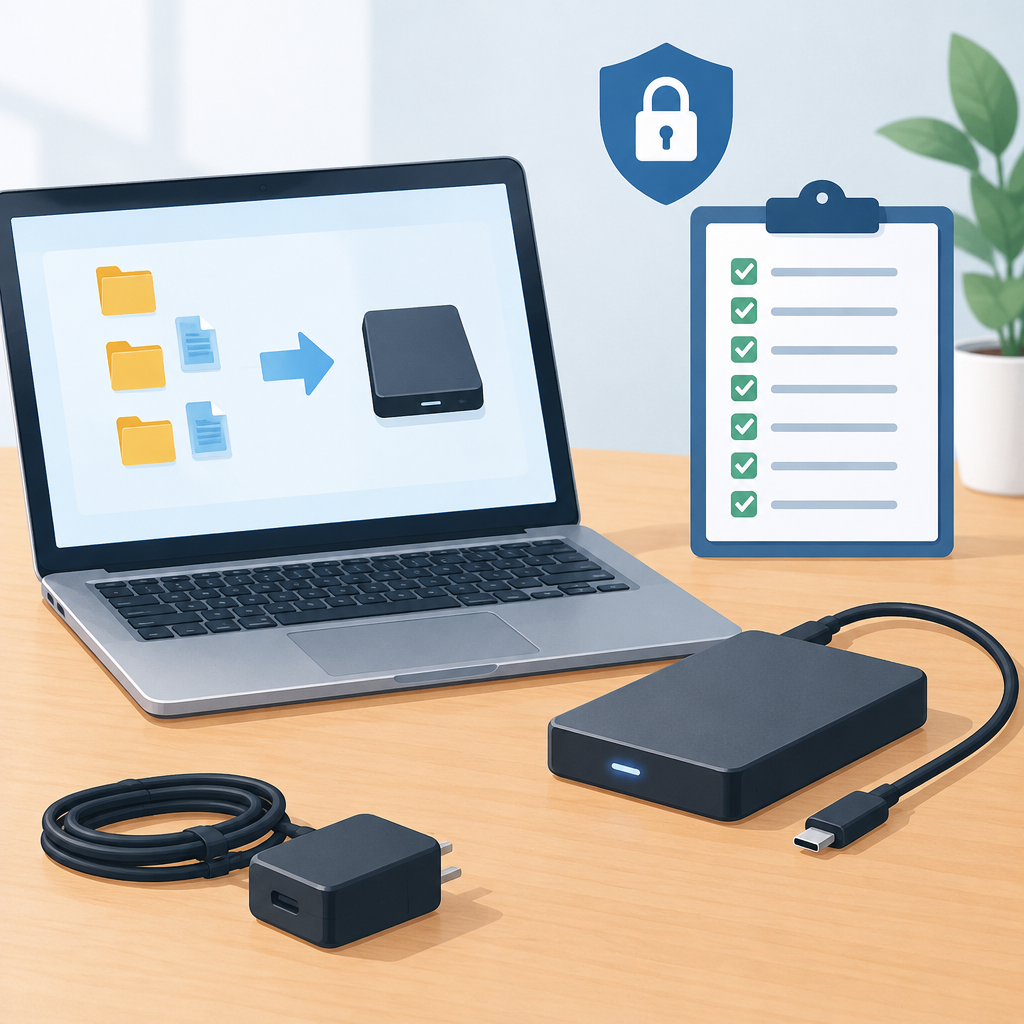
1. Define the backup job before you connect the drive
Before you plug in an external drive, decide exactly what it is for. A planned backup works best when you know the source devices, the data types, the retention period, and whether the job is a one-time copy, a recurring local backup, or a secondary copy for cloud-synced data. That scope determines the size of the drive, the file system you need, and whether the drive should be portable between Windows, macOS, Linux, or a network appliance. Write down what must be protected, such as documents, project files, photos, databases, virtual machines, or configuration exports, and what should not be copied, such as caches, temporary files, or application installers that can be recovered elsewhere. If the backup is part of a broader defense strategy, consider the “3-2-1” concept: multiple copies, different media, and one copy stored separately. On owned or authorized systems, this planning step prevents accidental overreach, reduces restore surprises, and helps you stop before you copy the wrong data.
2. Inspect the drive, cable, and power path first
A backup is only as reliable as the hardware path that carries it. Before using the drive, check the enclosure, USB or Thunderbolt cable, and power adapter if the unit is not bus-powered. Look for physical damage, loose connectors, wobble at the port, unusual heat, or clicking and repeated spin-up sounds. If the drive has a hardware write-protect switch, note its position so you do not accidentally block the backup process. When possible, connect the drive directly to the computer rather than through an untrusted hub, and avoid daisy-chaining devices that may create power instability. If the drive is old, has traveled in a bag, or sat unused for a long time, treat the first connection as a test rather than a full backup run. Let the operating system detect the device, then confirm that it appears with the expected size and manufacturer label. If the system repeatedly disconnects the drive, stop and troubleshoot before any data transfer. In many cases, a bad cable or unstable port is easier to fix than a failed copy that runs for hours and then aborts.
3. Verify the drive’s health and usable capacity
Once the drive is visible, verify that it is healthy enough for the job. Use the operating system’s built-in storage tools or the vendor’s diagnostic utility, if available, to check for obvious errors, reallocated sectors, unreadable blocks, or file-system problems. Do not rely only on the drive’s name or the fact that it mounts successfully; a device can appear normal and still be failing under load. If you manage backups on a networked storage device, also check link stability, local network quality, and whether the path between the computer and the storage is protected by trusted switches and authenticated access. Then estimate available space with a safety margin. A good rule is to leave room for metadata, versioning, and temporary working files created by the backup application. If your planned backup is close to the reported capacity, reduce scope, add another destination, or use incremental strategy rather than a full copy that leaves no breathing room. Stop immediately if the drive reports corruption, repeated read errors, or capacity that changes from one check to the next. Those symptoms are a warning, not a challenge.
4. Choose a file system and layout that match the restore plan
A backup drive should be formatted for the way you intend to restore from it, not just for the way you intend to write to it. The file system affects maximum file size, permissions, timestamps, compatibility, and whether the drive can be used across platforms. If the backup must be portable, confirm the general compatibility expectations of the computers that may read it later and consult the vendor’s documentation for recommended formats. Think about folder layout before you begin: separate the backup by device name, date, or workload so future restores are easy to identify. Use a structure that makes it obvious which copy is current and which is archival. If the drive already contains other data, decide whether to preserve it, move it elsewhere, or reformat only after verifying that nothing important remains. A common mistake is mixing personal files with backup sets, which makes restore testing harder and increases the risk of accidental deletion. Another mistake is using a format that works today but is awkward for the recovery machine you may need later. Preparation now is cheaper than a confused restore under pressure.
5. Apply security controls before any sensitive data is copied
Backups often hold the most valuable information in a system, so prepare the drive with the same defensive mindset you would apply to a password vault or database export. If your environment supports encryption, decide whether to encrypt the entire drive, the backup archive, or both. Record where the recovery key, password, or escrow process will live, and make sure that access is limited to authorized people. Do not store the only copy of the password on the same device as the backup. If the backup tool supports integrity checks, signing, or authenticated archives, enable those features so later verification can detect tampering or corruption. On systems that sync to cloud storage before landing on the external drive, confirm that the cloud account uses strong authentication and that synchronization is pointing at the correct folder. Avoid using the backup drive as a general exchange disk for unknown machines, because malware and accidental edits are common threats. If a security requirement cannot be met cleanly, stop and choose a different target or workflow. A backup that is unreadable to you or writable by everyone is not a safe backup.
6. Test the workflow with a small, reversible sample first
Hypothetical example for practice.
Before copying the full backup set, run a small test that you can reverse easily. Create a harmless sample folder or export a noncritical file set from an owned or authorized system, then write it to the drive using the same method you plan to use for the real job. This test confirms that the device mounts correctly, the application can create folders, permissions are preserved as expected, and the write path does not fail under light load. If your backup application supports verification after copy, use it now and compare checksums or built-in validation results. If you compress or encrypt the data, make sure you can open the archive again and read its contents. When the test is complete, remove the sample or place it in a clearly labeled test area so it does not get mistaken for the real backup later. Stop if the sample writes incompletely, if the system prompts for repeated credentials, or if the resulting file names differ from what the backup plan expects. A short test saves far more time than discovering a silent mismatch after the main copy begins.
7. Prepare the source system and backup application for a clean copy
The drive is only one side of the process; the source system also needs preparation. Close applications that may keep files open, pause heavy downloads, and avoid editing documents while the backup is running. If the backup includes databases, mail stores, virtual machines, or synchronized folders, use the application’s recommended export or snapshot method so the copy is internally consistent. General file copying may work for documents, but live application data often needs an application-aware backup or at least a clean shutdown to avoid partial state. Review the backup software settings for file exclusions, versioning rules, throttling, and destination path, and confirm that the destination is the external drive and not a cloud folder, local cache, or previous media. If the job is scheduled, check the clock, time zone, and available battery or power protection so the task does not start and stop unexpectedly. A common error is beginning a backup while the system is already low on disk space or under update pressure. If the machine is unstable, finish maintenance first and backup second.
8. Finish with verification, labeling, and clear stop conditions
After preparation and backup completion, verify that the result is usable. Open several restored files from the external drive, confirm timestamps and folder structure, and test at least one item from each critical data category. If the backup method provides logs, review them for warnings, skipped files, locked items, or authentication failures. Label the drive with a clear human-readable name, the backup purpose, and the date of the latest successful run, but avoid exposing sensitive details on the label itself. Store the drive in a secure place with controlled access and a stable environment, away from heat, moisture, magnets, and accidental unplugging. Keep a simple recovery note that explains how to decrypt, locate, and restore the data on a future system. Your stop conditions should remain explicit: if the backup fails verification, if the drive reports corruption, if the destination becomes unreadable, or if an unknown prompt appears, stop and investigate before repeating the job. A prepared drive is not just formatted; it is documented, validated, and ready for a trustworthy restore when needed.
إرسال تعليق