
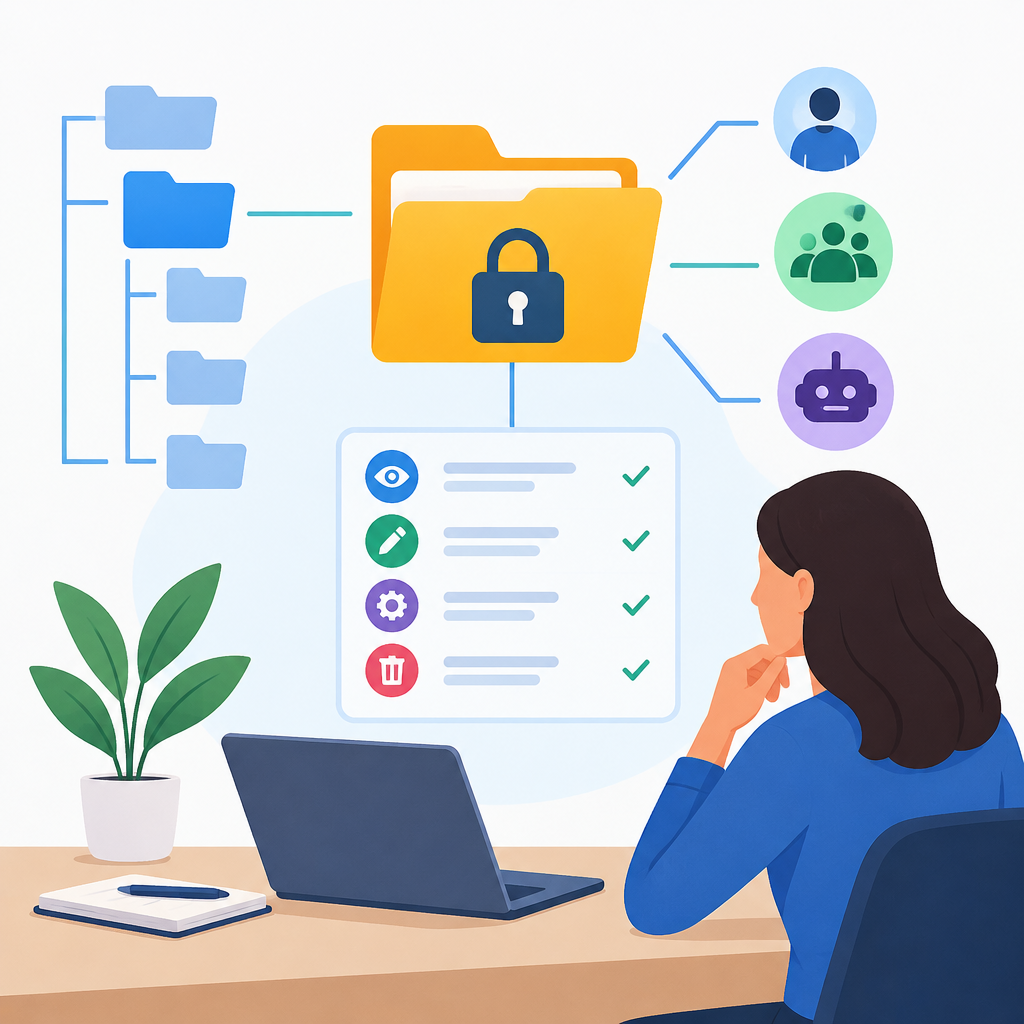
1. Start with the purpose and the scope
Reviewing permissions on a shared project folder begins with a simple question: who should be able to see, change, and share the contents, and why. Before touching anything, identify the folder’s business purpose, the people who use it, and the systems that sync or back it up. On owned or authorized systems, write down the expected access model: read-only for reviewers, edit access for contributors, and owner or admin rights only for people who manage structure and permissions. If the folder is in a local file server, a cloud drive, or a collaboration platform, the general principles are the same even when the interface differs. Confirm whether the folder contains sensitive files such as contracts, source code, financial records, or customer data, because higher sensitivity usually means tighter access. Also verify whether the folder is nested inside other shared locations, since inherited permissions often matter more than the folder’s visible settings. Stop here if you cannot identify the legitimate owner or stewardship team, because changing permissions without that context can create outages or expose data.
2. Map the folder path and understand inheritance
The next step is to map the folder’s location in the storage hierarchy. A shared project folder may inherit permissions from a parent share, a team site, a network file system, or a cloud workspace. That inheritance can be helpful because it reduces duplicate management, but it can also hide unexpected access. Check the full path and note every parent container above the folder. If the folder is on a file server, look for both share-level permissions and filesystem permissions, because both can affect real access. In cloud tools, review whether the folder sits inside a workspace, team, or shared drive that already grants broad visibility. The key concept is effective access: a user may be blocked by one layer yet allowed by another, or allowed by multiple layers at once. Where settings vary, consult the vendor documentation for how inheritance is displayed and overridden. A common mistake is focusing only on the folder’s local list and missing inherited access from a parent group. If inheritance is intentional, preserve it; if it is not, document why it should be adjusted before making any changes.
3. Identify users, groups, and service accounts
Permissions are easiest to manage when access is assigned to groups rather than individual people. Review the access list and separate three categories: named users, security or collaboration groups, and service accounts or automation identities. Named users are sometimes acceptable for temporary exceptions, but they are harder to audit and often survive after a project ends. Group-based access is generally preferred because you can add or remove people centrally without editing the folder each time. Service accounts deserve extra attention because they may be used by backup jobs, sync tools, CI pipelines, or desktop agents. Confirm that each service account has the minimum access needed and no interactive rights unless truly required. On authorized systems, check whether old employees, contractors, or test accounts still appear in the list. Look for groups that are too broad, such as all staff or all authenticated users, when the project really needs only a small team. A practical rule is to ask whether each entry has a clear owner and a clear purpose. If you cannot explain an entry in one sentence, treat it as a candidate for removal or escalation.
4. Review the permission levels and effective rights
After identifying who has access, review what each entry can actually do. Permission labels vary by platform, but the general levels are read, write, modify, delete, share, and administer. Read access usually means viewing or downloading files. Write or modify access often allows creating, editing, and renaming, but not always changing permissions. Delete rights can be especially risky in shared project folders because they may remove important work or versions. Administrative rights should be limited to a very small set of trusted managers. Be careful with permission bundles that sound convenient but are broader than needed, such as full control or owner-like access. Also check whether the folder is integrated with application permissions, because editors in a document app may gain capabilities that are not obvious from storage permissions alone. One common troubleshooting point is effective rights versus assigned rights: a user may appear to have access, but a deny rule, group conflict, or sync policy changes the final result. Stop and verify if the platform shows conflicting entries, because changing the wrong layer can create confusion without fixing the real issue.
5. Use a hypothetical example to test your review
Hypothetical example for practice.
Example on an owned, authorized system: imagine a cloud folder named Project Orion shared with marketing, finance, and two contractors. The folder contains campaign drafts, a budget sheet, and a release timeline. Your review finds that the marketing group has edit access, finance has read access, and one contractor account still has edit rights even though the contract ended last month. You also notice that a parent workspace grants access to everyone in the company, which is broader than the project team intended. In this case, the safe response is to confirm the project owner’s approved access model, then remove the contractor and narrow the parent share if possible. Before changing anything, record the current settings so they can be restored if needed. After the change, test with a second account or a delegated review role to confirm that marketing can still edit, finance can still read, and the former contractor can no longer open the folder. This kind of controlled test is one of the best ways to catch inherited permissions, cached access, and accidental overexposure without relying on assumptions.
6. Make reversible changes and preserve continuity
When you adjust permissions, use reversible changes whenever the platform allows it. Start with the least disruptive option: remove only the unnecessary account or reduce its role rather than rebuilding the entire access model. If possible, change access during a planned maintenance window so active collaborators are less likely to lose work mid-session. Save screenshots or exported settings before and after the change, or keep an internal change log that notes what was altered, by whom, and why. On file servers and cloud platforms alike, avoid making multiple unrelated permission edits at the same time, because it becomes difficult to identify which change caused a problem. If the folder supports versioning or recycle-bin recovery, confirm that it is enabled before removing delete rights or cleaning up old files. Also verify that dependent applications, synced desktops, and mobile clients can still reach the folder after the update. If access breaks unexpectedly, stop and restore the last known good configuration rather than improvising additional changes. A careful rollback plan is part of permission management, not an optional extra.
7. Verify from the network, cloud, and application side
Permission checks should not end with the settings screen. Verify access from the perspective of the network path, the cloud service, and the application layer. On a local network, confirm that the user is reaching the correct server, share, and domain context, because misdirected DNS, stale credentials, or cached sessions can make the result look wrong. In cloud environments, check whether conditional access, single sign-on, multifactor authentication, or device trust rules are affecting visibility. In document and collaboration apps, confirm whether the app has its own sharing model, because a file may be stored safely but still visible through a separate link or embedded workspace. If a user reports unexpected access, have them sign out and sign back in, refresh the client, and test from a different device or browser on an authorized system. These steps help distinguish permission issues from cache or sync problems. A common mistake is assuming a folder is secure because the settings look correct while an active link, offline cache, or synced local copy still exposes content. Stop once verification matches the intended access model across all relevant layers.
8. Document the result and set a review cadence
Once the permissions are correct, document the final state so the next review is faster and safer. Record the folder owner, the business purpose, the groups with access, any exceptions, and the date of the last review. If your organization uses periodic access reviews, align this folder with that cycle so stale accounts do not linger. For project folders, a practical cadence is after onboarding, after offboarding, after a scope change, and at the end of the project. Keep an eye on common mistakes such as giving personal accounts permanent access, leaving contractor access active after completion, using broad groups for convenience, or forgetting that child folders may not match the parent. If you notice recurring permission drift, consider whether the real issue is process, not the folder itself; perhaps new users are being added outside of formal onboarding, or a sync tool is reapplying old settings. Stop when the documented access model is clear, the tested behavior matches expectations, and there is a defined owner responsible for the next review. That disciplined finish is what keeps a shared project folder usable without becoming overexposed.
إرسال تعليق