
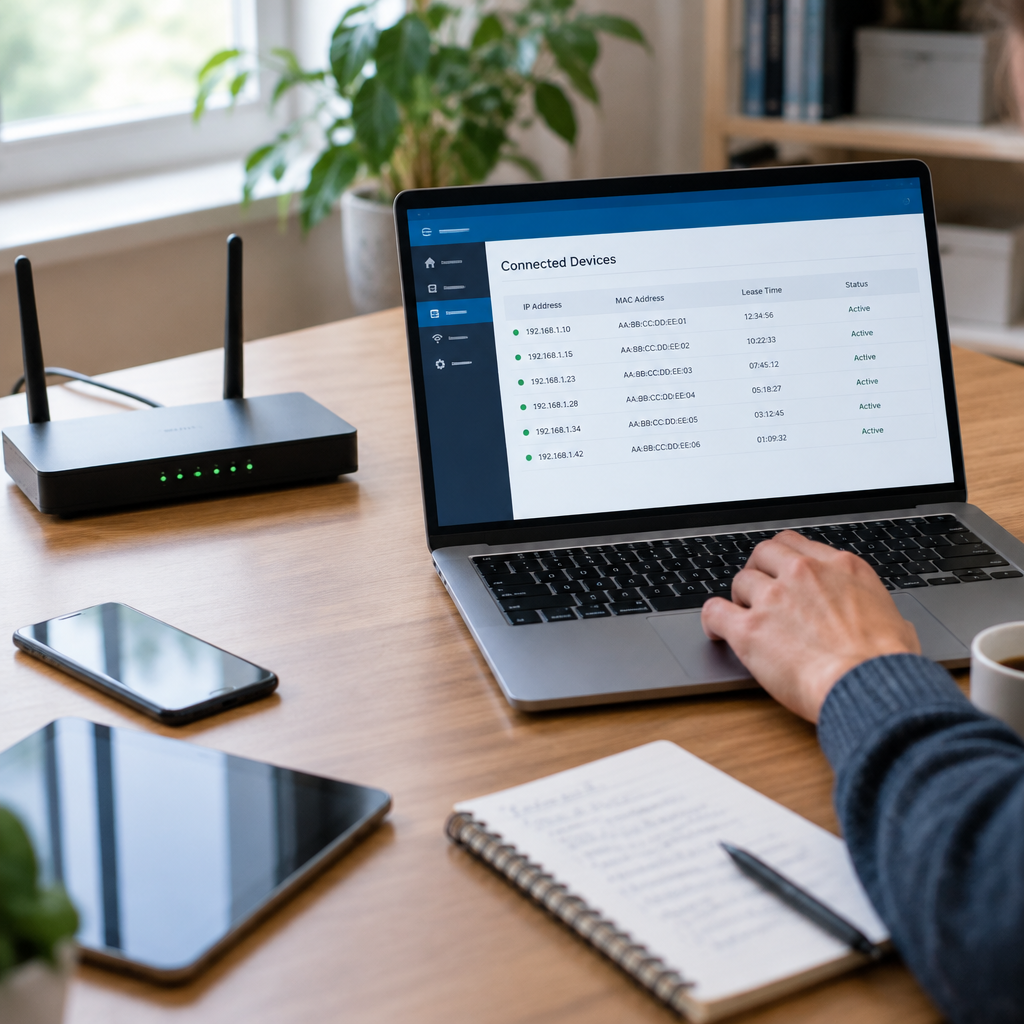
Why the DHCP lease table matters
A home router’s DHCP lease table is one of the most useful records for understanding which devices are currently using the local network. It is not a magical inventory, and it is not proof of identity by itself. A lease table usually shows an IP address, a MAC address, a lease time, and sometimes a hostname or vendor hint. Those fields are enough to narrow down a device, but only if you interpret them carefully. The main goal is to avoid guessing. Guessing device identity can lead to changing the wrong setting, blocking the wrong system, or disconnecting a shared printer, TV, or phone at the wrong time.
Before you begin, work only on a network you own or are authorized to administer. Identify the router that is serving DHCP, because a mesh node, access point, or ISP gateway may display different or partial data. If you are troubleshooting, write down the problem first: for example, duplicate addresses, an unknown client, or a device that lost connectivity after a reboot. A clear symptom makes the table useful instead of just noisy.
Know what each field can and cannot tell you
The strongest habit is to treat every field as evidence, not as a final answer. The IP address shows what the router gave the client. The MAC address identifies the network interface at layer 2, which is often more stable than the IP address, but still not a human name. The hostname is self-reported by the device and may be missing, generic, or changed by the user. The vendor prefix, also called the OUI portion of the MAC address, may suggest the manufacturer, but it does not tell you which room the device is in or who owns it. Lease start and expiration times show when the router last handed out the address, which helps separate active devices from stale entries.
A careful reading also considers the lease status. An active lease means the router currently expects the client to use that address. A reserved or static mapping means the router may always assign the same address to a known MAC. If your router supports both dynamic leases and reservations, do not assume that every visible address came from the same process. Consult vendor documentation for the exact labels used by your device.
Build a shortlist without forcing identity
Start by sorting the lease table using objective clues. Look for active leases first, then compare the list against devices that are actually powered on. If a device is offline, do not eliminate it immediately; it may be sleeping, disconnected, or using a static address outside the table. Next, group entries by hostname patterns. Phones often use user-assigned names, while printers, cameras, TVs, and smart appliances may show manufacturer-style names or no name at all. That grouping is only a starting point.
Then use timing as a filter. A device that renewed its lease five minutes ago is more likely to be online than one whose lease has nearly expired after days of inactivity. If the router displays client type, DHCP class, or connection method, treat that as supporting evidence rather than proof. If you have several unknown devices, make a shortlist and give each one a confidence level. For example, “likely laptop,” “possible tablet,” or “unknown wired device.” This approach keeps uncertainty visible and prevents overconfident mistakes.
A useful stop condition is simple: if the table no longer supports a safe conclusion, pause and use a reversible verification step instead of changing addresses or renaming clients.
Verify a device with reversible checks
Hypothetical example for practice, not a real case.
Verification should change as little as possible. The safest approach is to compare the lease table with a known, low-risk action on the device itself. On owned or authorized systems, you can temporarily disconnect Wi-Fi on one device and watch whether its lease disappears or becomes inactive. You can also reconnect that device and observe whether the same MAC and IP return. If the router and the device both support it, a brief renewal is another useful check. The goal is not to force a conflict; it is to see whether the table updates in a predictable way.
Another reversible method is physical or contextual verification. A printer near a desk, a streaming box on a TV, or a camera in a fixed location can often be identified by location and connectivity type after you narrow the candidate list. For wired devices, trace the Ethernet port if you have access to the switch or the device. For wireless devices, compare the MAC address label on the device packaging, admin screen, or network settings page. Stop if the check would disconnect a critical service, require a password you do not control, or alter shared network behavior.
Use reservations and naming to reduce future ambiguity
Once you identify a device confidently, consider whether the network would benefit from a DHCP reservation or a clearer hostname. A reservation tells the router to give the same address to the same MAC in the future. That can make printers, local servers, and managed appliances easier to find. However, reservations should be used intentionally, not as a blanket habit. If a device is supposed to move freely between networks, a reservation may create unnecessary coupling. If the device’s MAC can change through privacy features or multiple interfaces, the reservation may stop working unless you map the correct interface.
Hostnames also matter. A clear name such as office-printer or living-room-tv is better than a random factory label, but only if it is accurate and maintained. If your router lets you edit client labels, use those labels as documentation rather than identity proof. Keep a simple network note that records the device model, room, MAC address, reserved IP if any, and why it was assigned. This documentation is reversible: you can remove a reservation later if the device leaves the network or is replaced.
Spot common mistakes in the table
One common mistake is assuming a single MAC address represents a whole household device forever. Many devices have multiple interfaces, virtual adapters, or randomized Wi-Fi MAC addresses. A laptop may appear with one address on wired Ethernet and another on wireless. A phone may use a private Wi-Fi address that changes over time for privacy. If you do not account for that behavior, you may think you are looking at two devices when you are really seeing one device in two modes. Another mistake is trusting a hostname that was copied from a previous owner, a factory setting, or another network.
A second mistake is confusing an old lease with a current connection. DHCP tables often retain expired or historical entries for a while, depending on the router. A stale entry can look active if you ignore timestamps or status flags. A third mistake is making changes while testing. Do not shorten all lease times, delete random reservations, or reboot the router unless you understand the effect on every client. If the table is too noisy to interpret, stop and work from the router’s logs, the device’s own network settings, or a smaller subset of clients.
Tie the lease table to broader troubleshooting
Hypothetical example for practice, not a real case.
A DHCP lease table becomes much more useful when combined with basic network troubleshooting. If a device has a valid lease but cannot reach the internet, the problem may be beyond DHCP: Wi-Fi signal issues, DNS failures, gateway problems, firewall rules, or application-layer restrictions may be involved. If a device never appears in the lease table, then the issue may be that it is not using DHCP at all, is connected to another network, or is failing before it requests an address. Reading the table helps you choose the next test instead of guessing.
For example, on an authorized home network, a smart TV might show a valid lease but still fail to load apps. That points away from identity and toward path, name resolution, or service access. A second example is a laptop that keeps changing IP addresses after sleep. That suggests a renewal, roaming, or reservation issue rather than a damaged application. The lease table gives you a timeline for these events, which is often enough to separate local network behavior from cloud or service-side problems.
Work methodically and know when to stop
The best way to read a lease table is to move from evidence to confidence in small steps. First, confirm the router is the DHCP authority. Second, read the fields without assuming identity. Third, shortlist devices using active status, timing, and naming clues. Fourth, verify with a reversible action if needed. Fifth, document any reservation or label change so the next review is easier. This process keeps the network stable and prevents accidental outages. It also makes later troubleshooting faster because you are building a record instead of relying on memory.
Stop when you have enough certainty to make the change you actually need, or when further testing would be riskier than leaving the table alone. If two devices still look similar after careful checks, do not force a conclusion. Leave both marked as uncertain and revisit them later with more context. That restraint is a feature, not a failure. Reading a DHCP lease table well means respecting what the table can prove and what it cannot. The goal is accurate network understanding, not a guessed answer that happens to look convenient.
إرسال تعليق